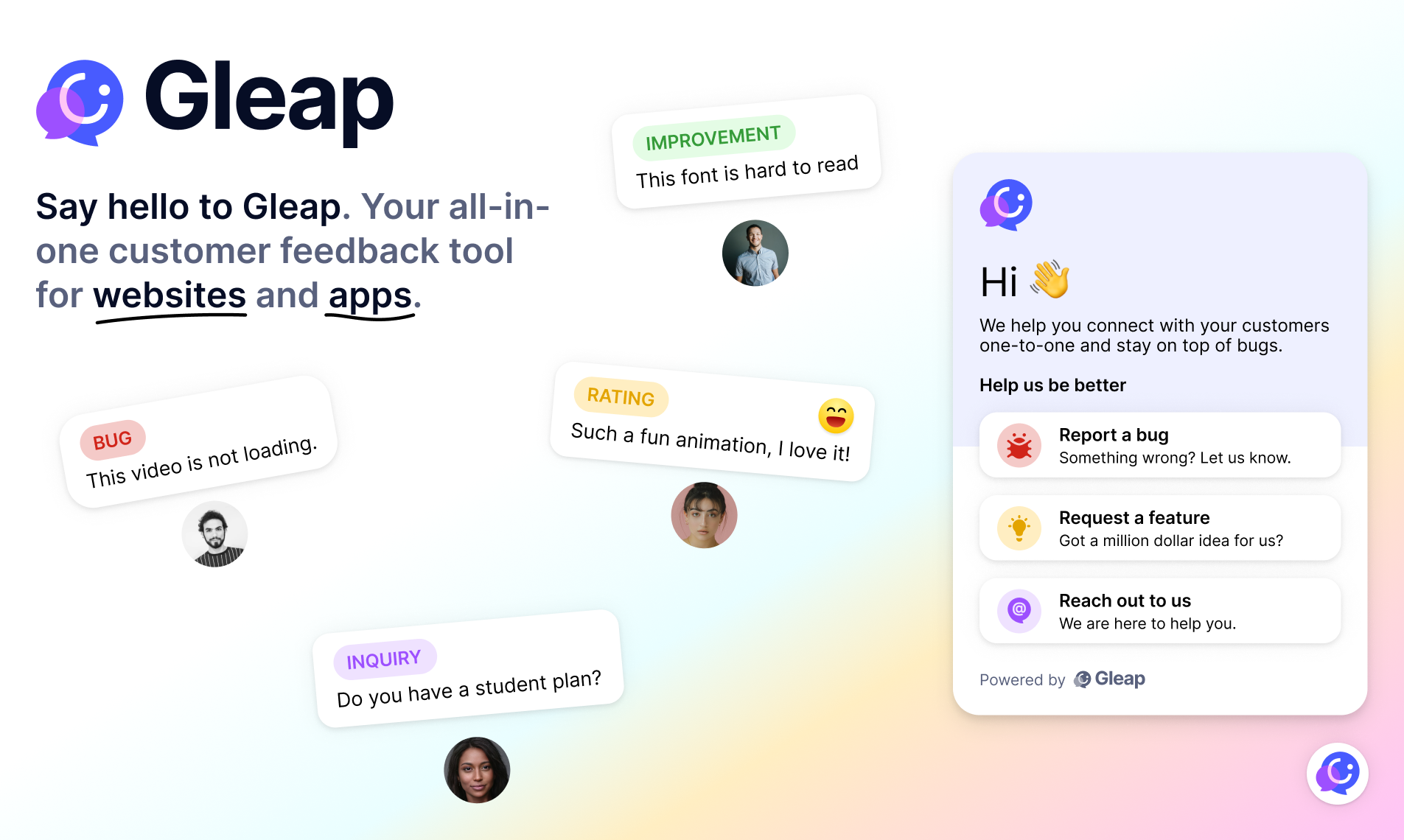
Add AI-native customer support, live chat, in-app bug reporting, a help center and surveys to your iOS apps with Gleap. Gleap is an Intercom alternative for software teams that connects customer conversations and feedback with product development.
SDK documentation · Website · Plans and pricing
Checkout our documentation for full reference.
The Swift Package Manager is a tool for automating the distribution of Swift code and is integrated into the swift compiler. Gleap supports installation with Swift Package Manager.
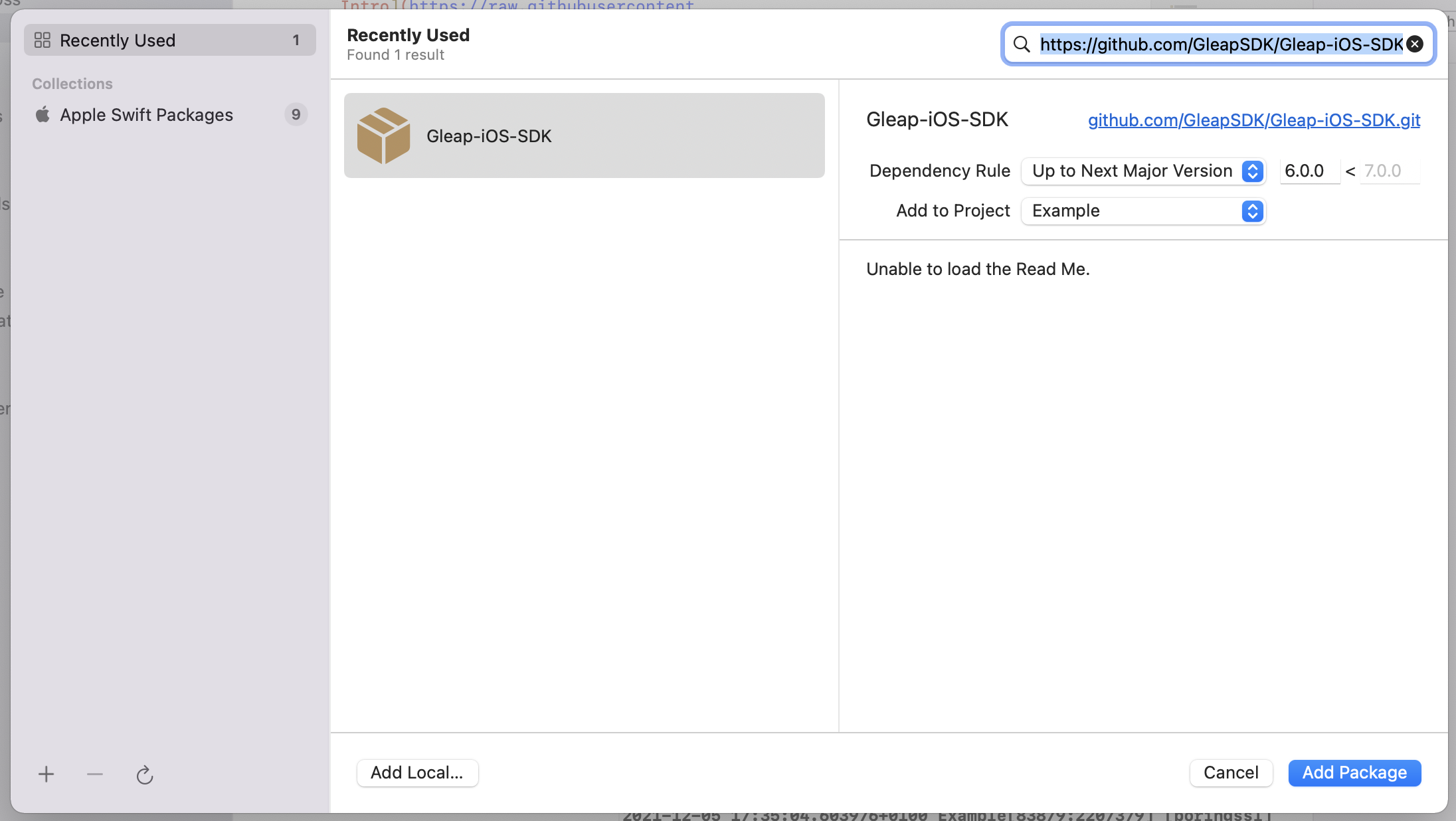
To get started, open your Xcode project and select File > Add packages...
Now you need to paste the following Package URL to the search bar in the top right corner. Hit enter to confirm.
Package URL:
https://github.com/GleapSDK/Gleap-iOS-SDK
Now confirm with add package. The Gleap SDK is almost installed successfully. Let's carry on with the initialization 🎉
Open a terminal window and navigate to the location of the Xcode project for your app.
Create a Podfile if you don't have one:
$ pod init
Open your Podfile and add:
pod 'Gleap'
Save the file and run:
$ pod install
This creates an .xcworkspace file for your app. Use this file for all future development on your application.
The Gleap SDK is almost installed successfully. Let's carry on with the initialization 🎉
Open your XCode project (.xcworkspace) and open your App Delegate (AppDelegate.swift)
Import the Gleap SDK
Import the Gleap SDK by adding the following import below your other imports.
import Gleap
Initialize the SDK
The last step is to initialize the Gleap SDK by adding the following Code to the end of the applicationDidFinishLaunchingWithOptions delegate:
Gleap.initialize(withToken: "YOUR_API_KEY")
(Your API key can be found in the project settings within Gleap)
Gleap projects are hosted in the EU by default. If your project lives in the US data region, set the region before initializing the SDK:
Swift
Gleap.setRegion("us")
Gleap.initialize(withToken: "YOUR_API_KEY")
Objective-C
[Gleap setRegion: @"us"];
[Gleap initializeWithToken: @"YOUR_API_KEY"];
setRegion accepts "eu" (default) or "us" (case-insensitive) and sets all regional hosts at once. Unknown regions are ignored.
| Region | API url | WebSocket api url | Realtime host |
|---|---|---|---|
eu (default) |
https://api.eu.gleap.ai |
wss://ws.eu.gleap.ai |
sockets.eu.gleap.ai |
us |
https://api.us.gleap.ai |
wss://ws.us.gleap.ai |
sockets.us.gleap.ai |
Order matters: call setRegion first, then any manual setter (setApiUrl, setWSApiUrl, setRealtimeHost), then initialize. A manual setter called after setRegion overrides that single host.
The static widget hosts are global and are not changed by setRegion: the frame url (messenger-app.gleap.io/appnew), the banner & modal urls (outboundmedia.gleap.io). They can be customized with setFrameUrl, setBannerUrl and setModalUrl.
With every ticket the SDK sends env data (device model, OS version, screen size, locale, battery state, …), shown under the Env data tab in Gleap. To leave out individual keys, pass them to setEnvDataPropsToIgnore; to stop collecting env data entirely, use setDisableEnvData:
Swift
Gleap.setEnvDataPropsToIgnore(["deviceName", "batteryLevel"])
Gleap.setDisableEnvData(true)
Objective-C
[Gleap setEnvDataPropsToIgnore: @[@"deviceName", @"batteryLevel"]];
[Gleap setDisableEnvData: YES];
Both can be called at any time and apply to the next ticket. Each setEnvDataPropsToIgnore call replaces the previous list, an empty array resets it. setDisableEnvData(false) turns the collection back on.