A lightweight VST3 plugin host for your microphone. Load your plugins, apply your chain, and your processed audio becomes a virtual device usable in every app, call, and game — no per-app configuration needed.
Built on Spotify's Pedalboard. Windows only.
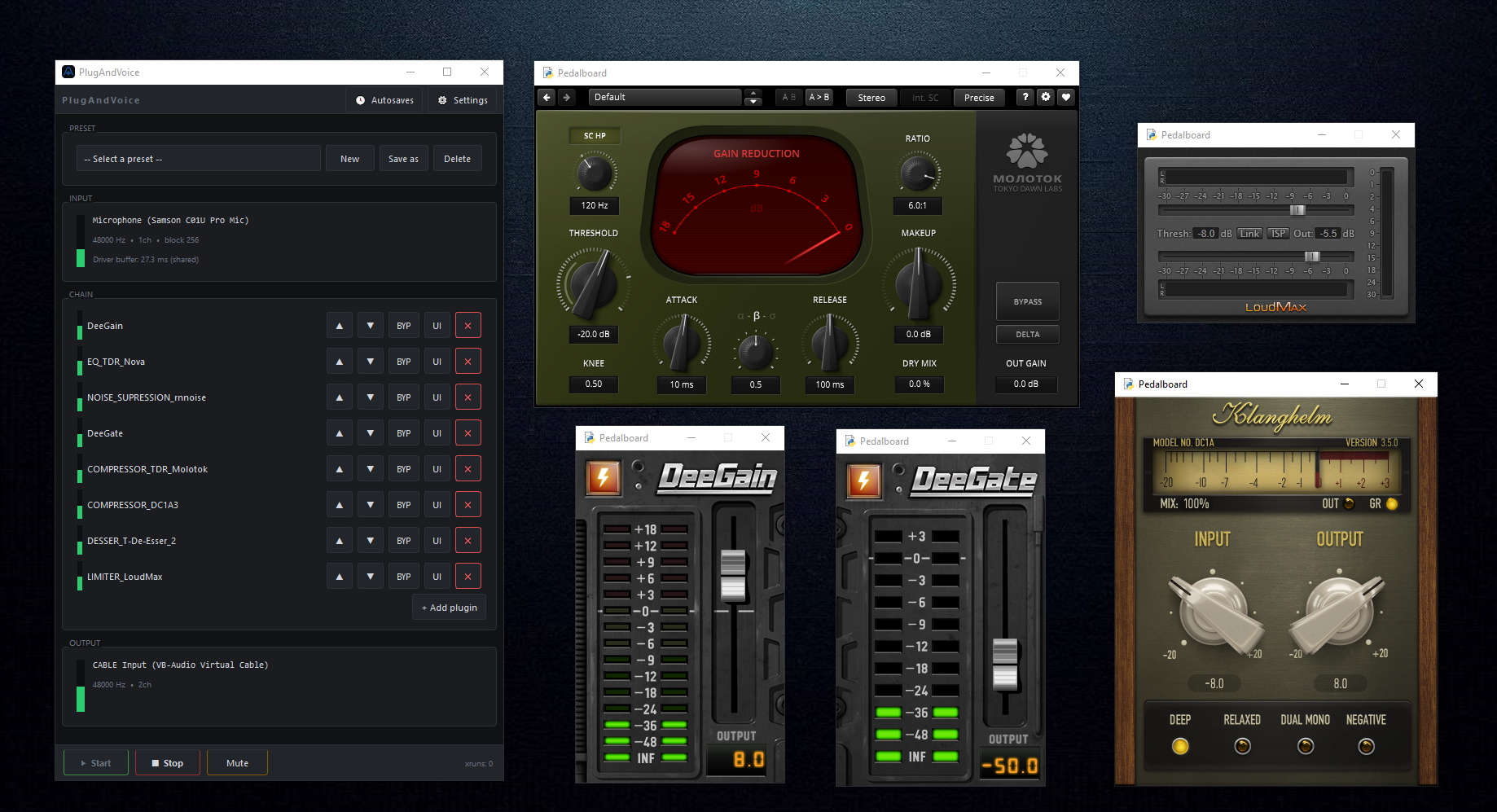
You have a nice mic chain setup, somewhere. Maybe it lives in OBS, maybe in a DAW, maybe you've just collected a few good VST plugins over the years. The problem is it only works in that one place.
Plug and Voice fixes that. Load your plugins, build your chain, and your processed audio becomes a virtual device every app on your system can use — meetings, games, calls, recordings. Set it up once and forget it's running.
No accounts. No telemetry. No installer that touches your audio stack. Copy the folder to a new machine and it works.
This is not Voicemeeter. It doesn't do routing graphs, mixing, or multi-output configurations. It does one thing: takes your mic input, runs it through your VST3 chain, and puts clean audio everywhere. If you need a full suite, those exist. If you just want your plugins on your mic, this is faster.
Quick-load presets on a keybind mean you can switch full chains on the fly — one bind for calls, another for recording, another for gaming.
If you know what a VST plugin is and you own a few, you're home.
Core
- VST3 plugin host — load and chain any VST3 plugins
- VST editor support — open the native plugin UI for any plugin that has one, with draggable windows and multi-instance support (patched from Pedalboard, which does not support this natively)
- WASAPI recommended, MME supported
- Exclusive (private) mode — keep your mic private from other apps
Signal chain
- Per-plugin dB metering — see exactly what each plugin contributes
- xRun counter and driver buffer ms display
- dB gauge themes
- Native gain control at input and output (planned)
- Horizontal metering bars mode (planned)
- Full chain ms (planned)
Session management
- Session-based — one persistent state, restored on every restart
- Autosave on every engine reload — quick and often
- Preset save and load — store and recall full sessions
- Keybinds — start/stop, mute, and per-preset quick-load binds
Stability
- Callback watchdogs — handles device hangups and stream failures gracefully
- Solid chain management — no hot-swapping, sync approach to avoid state corruption
Setup
- Device picker with recommended device hints
- Configurable folder paths —
./vst3, presets, and user data all in one place - Run on Windows startup
- Hide on tray
- Windows 10+ (tested), likely works on Windows 8+ with WASAPI. Wont work on Windows 7.
- VB-Cable — free and well known, not bundled for legal reasons (it's our competitors, ha!)
- Python 3.14, if you are running from source
Install VB-Cable, highly recommended. The app will tell you if it's missing. If you know what you are doing and already own dedicated audio devices, you can skip it.
-Download it from VB-Cable
-Right-click the .zip file and extract it into a folder.
-Run VBCABLE_Setup_x64.exe
-Give it some time to install, it might freeze for a few seconds
-Restart your PC
- Download latest release HERE
-Unzip the file by right-clicking the downloaded .zip and extracting the files.
-Drop your VST3 plugins into the vst3 folder (you can configure path in settings)
-Run PlugAndVoice.exe
You'll likely see a Windows SmartScreen warning on first launch. This happens because we don't have a code signing certificate — Microsoft charges an annual fee of $200 for those, and we're not paying it for an open source tool.
The warning does not mean the app is malicious. It means we didn't pay Microsoft to say it isn't.
Your options:
- Click More info → Run anyway to proceed
- Or skip the exe entirely: you have the full source, just run
python main.pydirectly and SmartScreen never enters the picture
Install dependencies
pip install -r requirements.txtDrop your VST3 plugins into the vst3 folder (you can configure path in settings)
Run the app
python main.pyThese have been tested and confirmed to work. Some might not render correctly in your screen due to Windows Layout Scaling. See notes on how to fix that below.
Noise suppression — free
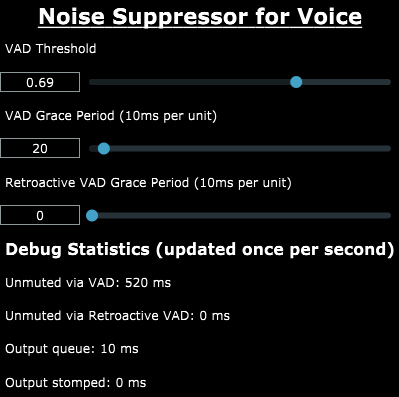
Real-time noise suppression using a recurrent neural network. Removes most background noise, keyboard sounds, clicks and more. Set and forget.
- [Wermans-version] (https://github.com/werman/noise-suppression-for-voice)
- [Download] (https://github.com/werman/noise-suppression-for-voice/releases/download/v1.10/win-rnnoise.zip)
Various — free tier available
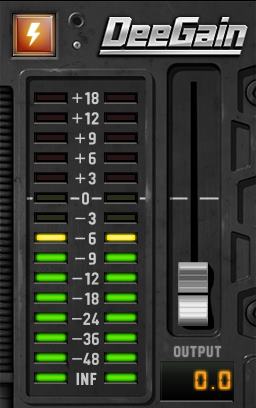
Japanese plug-in manufacturer. Clean, well-behaved plugins. Very retro.
-
[Homepage] (https://www.dotec-audio.com/)
-
[Download DeeGate] (https://dotec-audio.com/deegate.html)
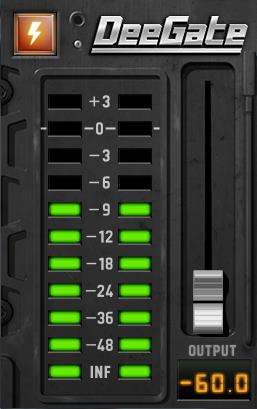
- [Download DeeGain] (https://dotec-audio.com/deegain.html)
EQ, dynamics, and more — free
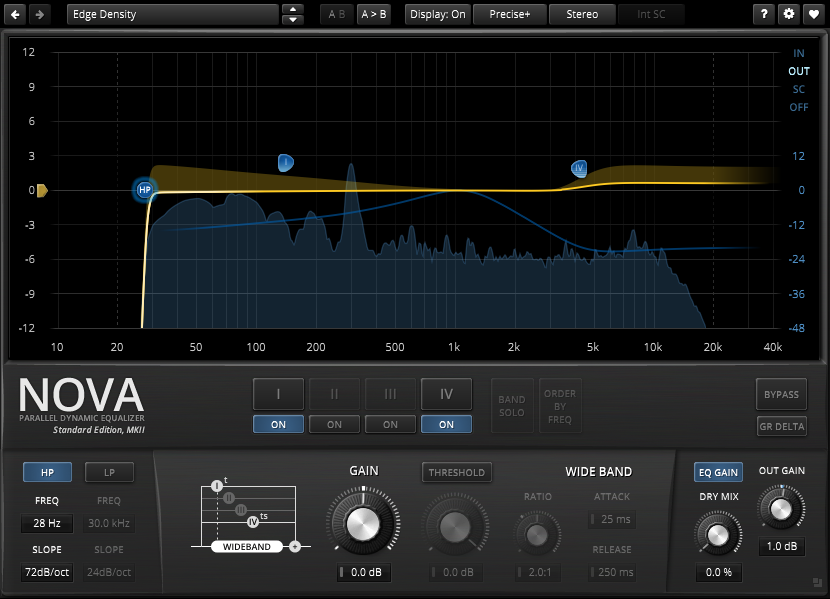
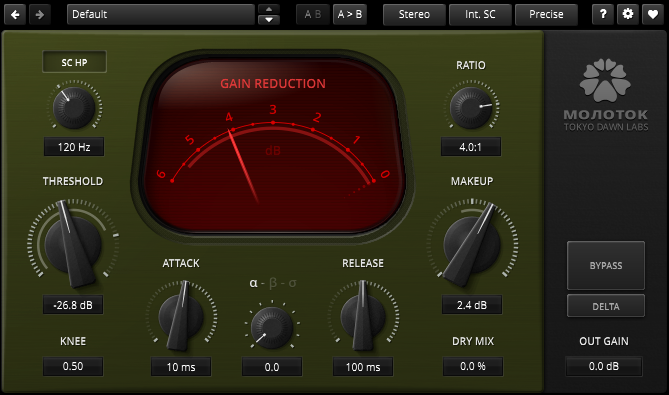
Some of the best free plugins available. TDR Nova (dynamic EQ) is a standout. TDR Molotok is gorgeous. Some resolution issues, see below.
-
[Homepage] (https://www.tokyodawn.net/tokyo-dawn-labs/)
-
[Download TDR Nova] (https://www.tokyodawn.net/tdr-nova/)
- [Download TDR Molotok] (https://www.tokyodawn.net/tdr-molotok/)
Compressors and effects, free and paid
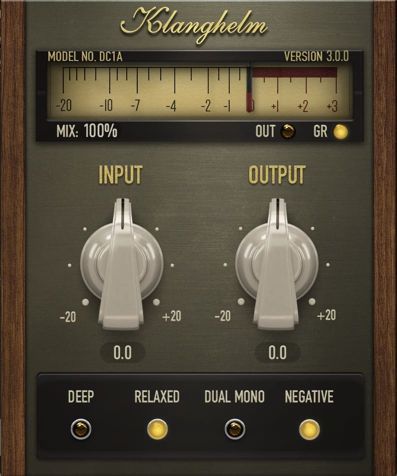
Gorgeous retro plugins.
-
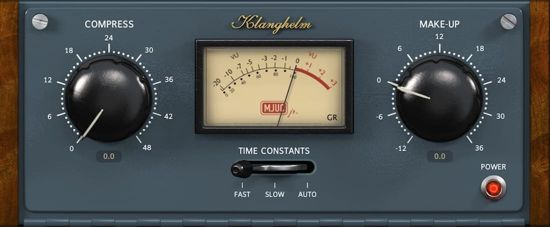
[Homepage] (https://klanghelm.com/contents/common/main.html)
-
[Download DC1A] (https://klanghelm.com/contents/products/DC1A)
- [Download MJUC jr.] (https://klanghelm.com/contents/products/MJUCjr)
Note that most installers drop files in a non-obvious path:
C:\Program Files\Common Files\VST3\
C:\Program Files\Common Files\VST3\<vendor>\
C:\Program Files (x86)\Common Files\VST3\
We default to a "vst3" folder right next to the launcher for portability and flexibility, which is non standard. You can choose to use the default vendor path instead.
Plugin windows may open at the top-left of your screen rather than where you'd expect. This is a Pedalboard limitation — it doesn't natively support VST editor windows, and the workarounds in place don't fully control positioning. Close and reopen the specific plugin window, or do an engine restart. The rest of the app stays running fine either way. No crashes, no freezing — just spatial confusion.
Upstream fix depends on Pedalboard updating from JUCE 6 to JUCE 8. Not in our hands.
If your Windows display scale is set to 125% or 150%, some VST plugins will render incorrectly or get clipped. Fix: right-click desktop → Display Settings → set Scale to 100%.
This is a JUCE 6 limitation. Some plugins handle it fine, some don't. The tested plugins listed above scale correctly.
Private mode (aka Exclusive mode) is a way to load a device (a microphone, for example) in a way that is managed exclusively by a given application instead of Windows. This has a couple of side effects:
1.- No other application will be able to use your original raw microphone anymore. You will have to change your input device to the VB Cable Output or whichever you decide on.
2.- Latency can change, for better or worse. Professional equipment may benefit from exclusive mode, but generic microphones might see even higher latency.
3.- Private mode can be useful for privacy-conscious people or those who simply want to keep their default microphone inaccessible.
Our keybind hook uses the least invasive mode available. Otherwise, we would be using something closer to raw input, which might raise false positives on several antivirus software. To solve this, we would essentially need to pay Microsoft for a certificate. For now, either use the app in windowed fullscreen or tab out. A more aggressive hooking strategy is only viable for users that know how to run a separate branch from source.
What's the minimum Windows version? Tested on Windows 10. Some dependencies were introduced on Windows 8, so we cant provide support for earlier versions. MME is also supported if WASAPI isn't available.
Can I hook up something other than a mic? Yes — any input device works. Mic is just the primary use case.
Will there be VST2 support? No. Pedalboard can't support VST2 due to licensing restrictions on Steinberg's end.
What about Mac or Linux? Windows only. No plans to change this.
Why not Voicemeeter, Element, or Cantabile? Those tools are built for complex routing and mixing scenarios. They're powerful but they require real investment to learn, and they've been known to interfere with existing audio setups. Plug and Voice is intentionally narrow — if you need a full suite, those exist. If you just want your plugins on your mic, this is faster.
What about Elgato Wave Link 3? Windows 11 only. Hard pass.
Why Python and not C++? Python is fast to write and debug. This is a focused tool, not a high-performance audio engine, and Python is more than fast enough for what it does. A C++ version built directly on JUCE is worth considering — it would resolve the scaling issues and give access to newer JUCE features — but that's a much larger undertaking.
Was AI used to build this? Yes, mostly on implementation. Design was authored by conniptionzs. It took longer to design and review than to implement.
So it was vibecoded? As much as paying an intern counts as vibecoding.
MIT + Commons Clause. See LICENSE for the full terms.
Free to use, modify, and distribute. Not free to sell.
For inquiries, you can write to admin@theblacktemple.org.