
🌐 English | Tiếng Việt | 简体中文 | 日本語
A lightweight Zsh setup for macOS. It gives you syntax highlighting, colorful file listings, a clean prompt, and smart autosuggestions that match any part of your command history.
Most Zsh setups only suggest commands that start with what you type. This one searches your entire history for any match and shows it with a » arrow.
Open Terminal on any Mac and run:
curl -sSL https://raw.githubusercontent.com/openhoangnc/setup-zsh/main/setup.sh | bashThe script only uses built-in tools (
curl,unzip,zsh). You don't need Git or Xcode Command Line Tools.
Then apply the changes to your current terminal:
source ~/.zshrc- Smart Autosuggestions — Commands you're starting to type are suggested first; if nothing starts with your text, your whole history is searched for it anywhere in a command, shown with a
»arrow. Case doesn't matter (e.g., typingGOOGLEfindscurl -I google.com). - History Search with Arrow Keys — Type a keyword, then press Up / Down to scroll through every past command that contains it.
- Syntax Highlighting — Commands turn green if valid, red if not — in real time as you type.
- Clean Prompt — Shows
~/short/path (branch*) ↑1 ↓2 ❯. Inside a Git repo, you see the branch name, whether you have uncommitted changes, and how many commits you're ahead/behind the remote. The arrow turns pink if the last command failed. - Auto-CD — Type a directory path and press Enter. No need to type
cdfirst. - Colorful File Listings — Files and folders get distinct colors that look good on both light and dark backgrounds.
- Better Defaults — Case-insensitive Tab completion, smarter history (no duplicates), up to 100,000 commands saved, and everyday keys that just work (Home / End / Fn+Delete / Option+Arrow word jumps).
- Dev Tools Installer (
install-dev-tool) — An interactive menu to install Bun, Go, Homebrew, Node.js, Python & uv, Rust, JDK (Eclipse Temurin LTS), Codex, gcloud CLI, Git, OrbStack, Android Studio, VSCode, DBeaver, MongoDB Compass, Antigravity, Claude, and Google Chrome — plus a Global Packages row that updates the packages installed through your package managers — npm, pnpm, Yarn, Bun, Homebrew, uv, pipx, RubyGems, Composer, and cargo — for whichever ones you have. Navigate with arrow keys, pick what you need. - Mac Cleanup (
cdm) — Installs CleanDevMac, my standalone cleanup tool (it started out in this repo). It reclaims disk space from regenerable developer caches and build artifacts (Xcode, Go, Node/npm/pnpm/yarn, Gradle, Maven, Cargo, Python, Homebrew, Playwright, and more), clears Electron/browser/app caches, sweeps project junk grouped per repo, reclaims Docker/Podman space, and surfaces leftover data from apps you've uninstalled — never deleting anything without an itemized confirmation.
As you type, Zsh shows a faded suggestion from your history. Suggestions that start with your text are preferred; when nothing starts with it, the most recent command containing it is shown after a » arrow.
- Starts with your text: Type
curl→ see-I google.comin gray. Press→orCtrl+Fto accept. - Contains your text: Type
google→ see» curl -I google.com.- Press
→orCtrl+Fto accept the whole suggestion. - Press
Option+→(orAlt+F) to accept one word at a time.
- Press
- Browse more matches: Press Up Arrow to replace the line with another match, then keep pressing Up / Down to cycle through all matches.
⚠️ Enter always runs exactly what you typed — never the faded suggestion. To run a»suggestion, accept it first with→(orCtrl+F), then press Enter.
Just type a path and press Enter:
~/Downloads  # goes to ~/Downloads
..           # goes up one folder
If a folder shares its name with a command (e.g.
test), the command wins. Add a slash to force the cd:test/.
- Shows
~/short/path (branch*) ↑1 ↓2 ❯. Long paths are automatically truncated. - Pink
*= you have unstaged changes. Green+= you have staged changes. - Green
↑N= N commits ahead of the remote (to push). Pink↓N= N commits behind (to pull). Hidden when in sync. - Arrow
❯turns pink if the last command failed.
Run install-dev-tool to open an interactive menu.

- Navigate: Use Up / Down / Left / Right arrow keys to move the cursor (
❯). - Select tools: Press Space or Enter to check/uncheck a tool (
[ ]↔[✓]), or type its number (for items 10–19, type both digits quickly). On the Global Packages row, Enter opens a per-manager breakdown instead of toggling — use Space or19to select it. - Actions (single line at bottom):
- Install: Move to
[I] Installand press Enter (or typeI). - Select all: Move to
[A] Toggle Alland press Enter (or typeA). - Update all outdated: Move to
[U] Select Outdatedand press Enter (or typeU), or runinstall-dev-tool --update-allfrom your terminal (it exits when done). - Quit: Move to
[E] Exitand press Enter (or typeE,Q,Esc, orCtrl+C).
- Install: Move to
- CLI flags:
install-dev-tool --helplists all options (-u/--update-all,-a/--all).
Good to know:
- Bun installs via its official script (
https://bun.sh/install) to~/.bun/bin. - Go and Node.js install to
~/.local/— nosudoneeded, even for global npm packages. - Homebrew installs via its official script (
https://raw.githubusercontent.com/Homebrew/install/HEAD/install.sh) and configuresshellenv. - Python installs along with
uv(Astral's fast Python package & project manager). - JDK installs official Eclipse Temurin LTS release and configures
JAVA_HOME. - Desktop apps (VSCode, Claude, OrbStack, MongoDB Compass, DBeaver, Google Chrome, Android Studio, Antigravity) are downloaded and placed in
/Applicationsautomatically. - Git is installed through Apple's official
xcode-select --install. - Global Packages (item 19) updates what your package managers installed, not the managers themselves. It covers every manager you have: npm (outdated globals reinstalled at
@latest;npm/corepackare left to the Node.js tarball), pnpm (update -g --latest), Yarn Classic (global upgrade --latest), Bun (update --global), Homebrew (update && upgrade), uv (tool upgrade --all), pipx (upgrade-all), RubyGems (gem update, skipped for macOS's system Ruby), Composer (global update), and cargo (install-update -a, only when thecargo-install-updateplugin is present). The row shows how many npm and Homebrew packages are outdated (the two that are cheap to poll); press Enter on the row for a full per-manager breakdown of what would change. After updating, each manager's cache is cleaned too (npm/Yarncache clean, pnpmstore prune, Bunpm cache rm,brew cleanup, uvcache prune,gem cleanup, Composerclear-cache) — best-effort, so a cleanup hiccup never fails the update. - A run that only updates drops straight back to the menu. A first-time install waits for Enter first, so its setup notes stay readable — as does a run that reported an error.
- The installer checks for the latest versions automatically on startup.
Cleanup is handled by CleanDevMac — my standalone tool, which grew out of this repo and now lives in its own. Setup downloads the latest release to ~/.zsh/setup-zsh/bin/cdm; run it with cdm (the old clean-my-mac name still works).
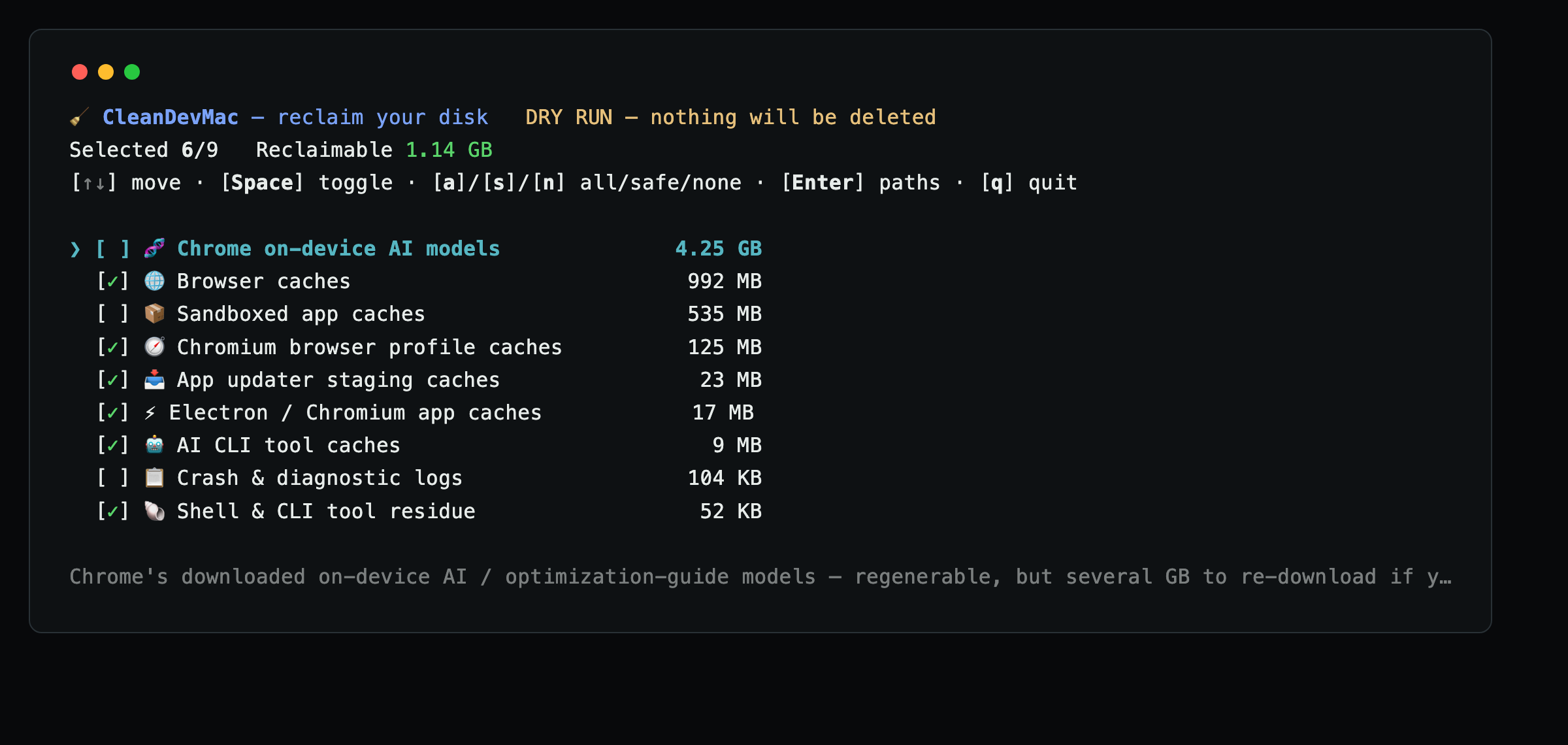
It opens an interactive menu: it scans your Mac, groups everything it can safely reclaim into categories sorted biggest-first, and deletes only the ones you tick — developer caches and build artifacts, Electron/browser/app caches, project junk grouped per repo, Docker/Podman, and leftover data from apps you've uninstalled. You always see an itemized plan before anything is removed.
It also runs standalone — no need to install setup-zsh first:
curl -sSL https://github.com/cleandevmac/cdm/releases/latest/download/cdm | bash
# dry-run (look only, delete nothing):
curl -sSL https://github.com/cleandevmac/cdm/releases/latest/download/cdm | bash -s -- -n
The TUI keys, the full list of what it cleans, the safety guarantees, and the editable rule JSON are all documented in the CleanDevMac README.
To remove everything and go back to your original settings:
curl -sSL https://raw.githubusercontent.com/openhoangnc/setup-zsh/main/uninstall.sh | bashThis will:
- Remove the setup-zsh config from your
~/.zshrc— your own custom aliases and settings are kept safe. If the file was created by this script and is now empty, it gets deleted. - Delete the plugin folder at
~/.zsh/setup-zsh/— nothing else in~/.zsh/is touched.
Licensed under the MIT License.
Includes these third-party plugins in the plugins/ directory:
- zsh-syntax-highlighting — BSD 3-Clause License
- zsh-autosuggestions — MIT License